Dynamic Finance
In order to reaching to features like financial accounting, general journal, treasury, liquidity control, check, bank and also information analyzing, Dynamic Finance should be installed. In general, while entering to the system, the fiscal year should be specified. If the basic information about fiscal year is not ready, system would show an alert to the user which is based on fiscal year preparation.
Users will have the ability for confirmation of fiscal year preparation, in case that they have the "admin" user access level. By the form confirmation, all of the information about financial accounts and the whole settings for financial accounting system will be fetched from previous year and write into the new fiscal year. Thus before ending a fiscal year, prevention of making next fiscal years is recommended in order to transferring final settings and changes during the cycle of the present year and system would not demand further information settings in the new fiscal years.
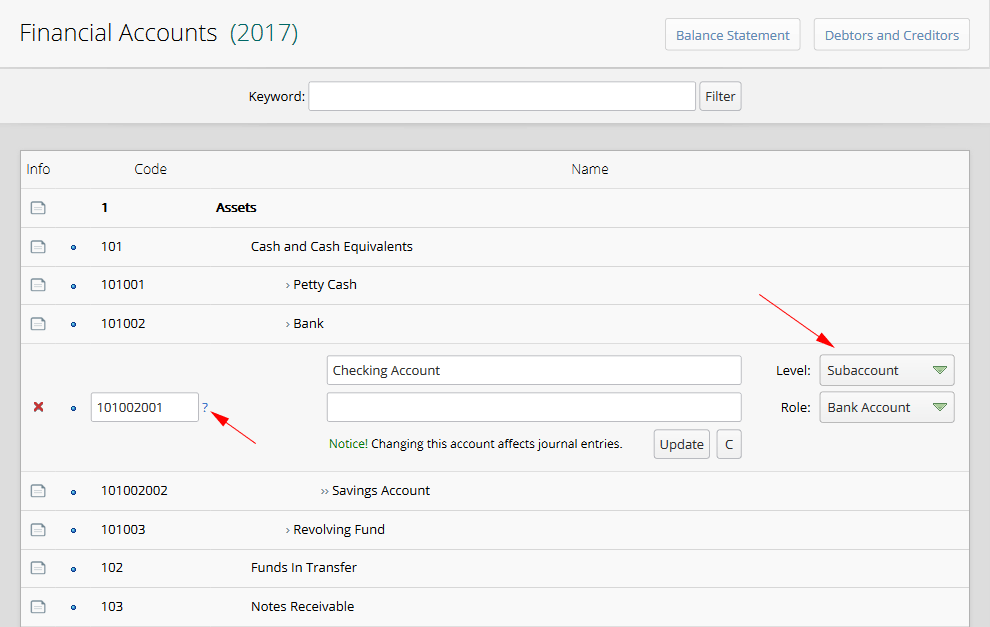
There is a section which name is “Financial Accounts” in “Settings”menu, which is used to define financial accounting coding for the present fiscal year. The basis of accounts definition is based on the manner of accounts coding and determination of accounts levels. By clicking on the question mark which is shown on the below image, the help file which is related to the codes structure introduction will be displays. If it is required, we also select the role of desired account in the treasury:
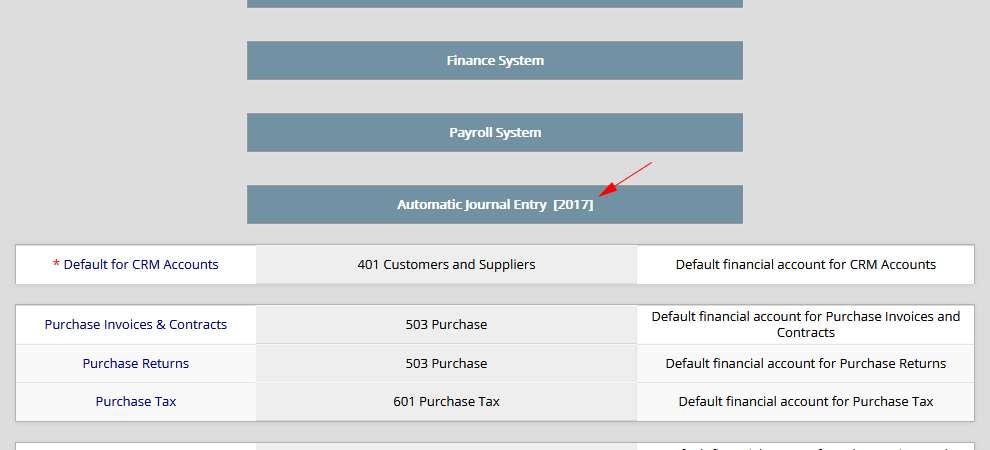
“System Settings” section is available in the “Settings” menu. In this section it is possible to define how to issue automatic journal entries. Financial accounts that are asterisked must be specified. After reading this chapter, please go to the related section and check all the details:
Four System Units will be created when the Dynamic Finance is installed and become activated. If the admin gives proper access level to the user for reaching to those system units, the name of these units will be displayed in the user’s Units list:
System / Finance / Journal Entries
System / Finance / Journal Templates
System / Finance / Payments In
System / Finance / Payments Out
Finance / Journal Entries: All the dynamic activities which are registered by this system unit are the basis of entering financial events.
Finance / Journal Templates: These are draft samples that are reachable while entering the manual documents in order to speeding up the process of journal entries registration.
Finance / Payments In and Payments Out: These are activities which register the treasury operations and issue the relevant journal entries automatically.
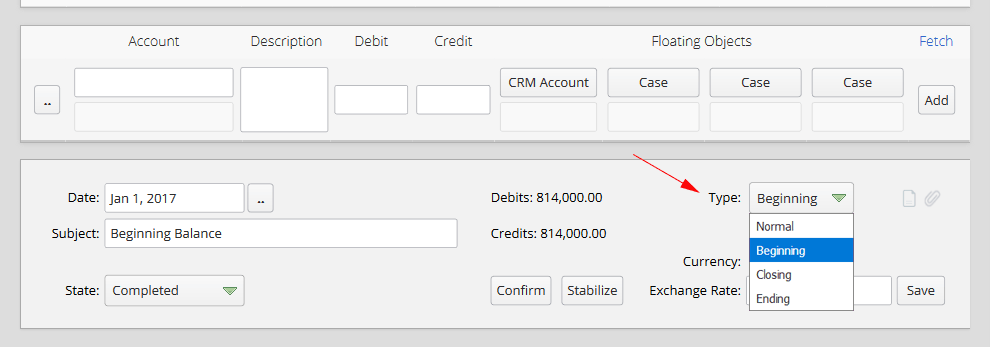
Attention: When a journal entry activity is created, the “Type” field that is placed in activity information could be initialized. Registering an activity as a "Beginning Balance" within specifying accounts states in the beginning of the fiscal year, would be useful for separating journal entries information in balance statement reports:
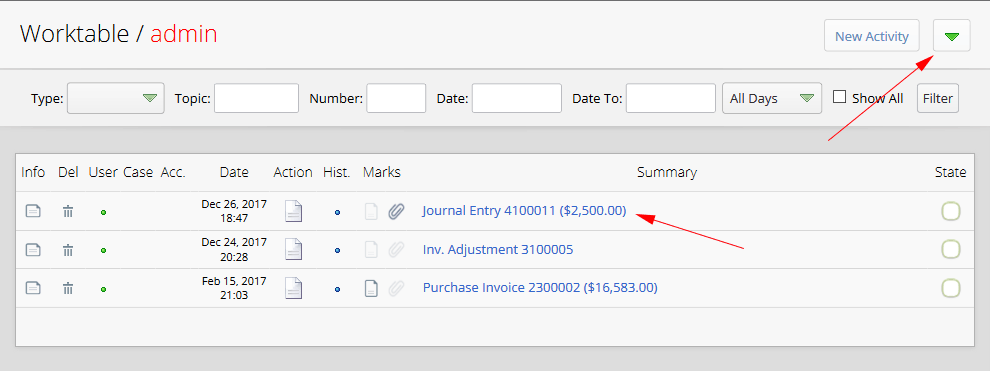
As mentioned in the previous chapters, in order to register a dynamic activity we may do so while we are in the section of the related system unit. If we are in different sections such as worktable or account profile we must click on the green button as shown in the image below after which we will be asked to choose a system unit as an origin from the list of system units. In this example dynamic activity with the specified origin of “System / Finance / Journal Entries” has been created:
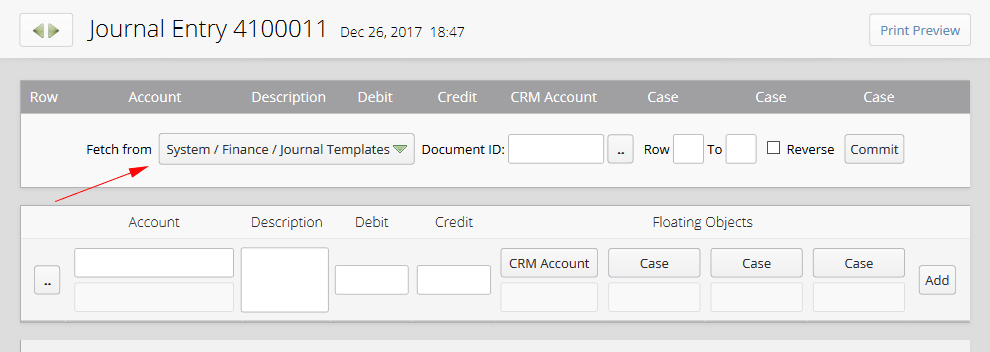
We should click on Activity ID and its title link in order to reaching to the journal entry details. In this case the related dynamic form of the activity will be open. While content form of a journal entry is out of articles, for speeding up and increasing information registration accuracy, it is possible to supply desired document details from fetching other dynamic activities like journal entries or journal templates:
In the below image a journal entry is illustrated that is registered automatically while entering the Payment In operation 4500001. In this document there is a row which is added manually by the user. Despite the fact that automatic rows are non-editable, it is possible to omit or edit manual rows by clicking on row descriptions. We can use "Add" button in order to register a new row. For recalling the information from a journal template or another journal entry, the "Fetch" link is placed at the top of this button:
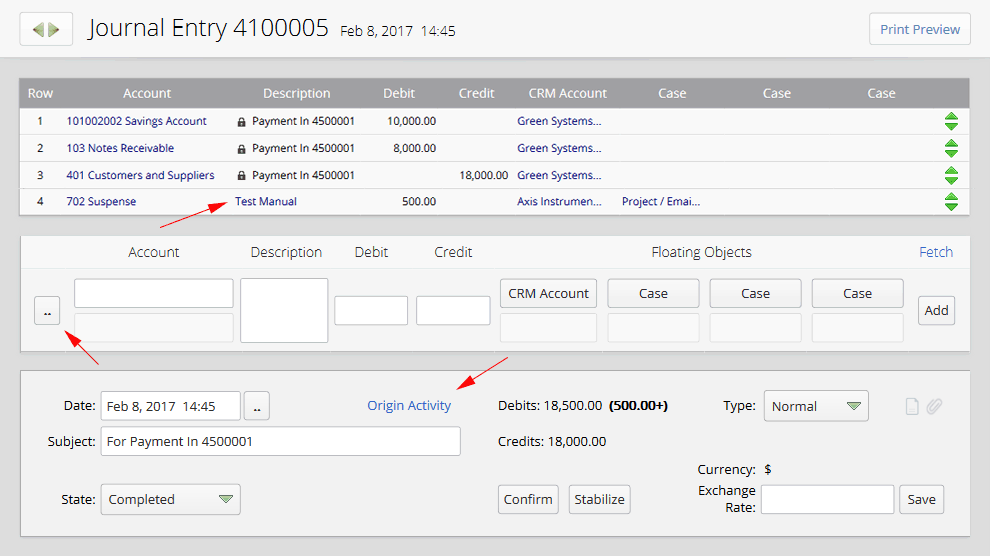
By clicking on the "Origin Activity" link, the activity which its registration causes to automatic issuance of the present journal entry, will be displayed on another tab. An origin activity could be a sales or purchase invoice or contract, payment in and payment out form and so on. Generally implementing any changes on the origin activity causes related journal entry rewrite automatically. In this case all the manual rows which are added by the user to the journal entry will stay safe without any changes.
Activity Fixation: By using the Stabilize and Confirm buttons, we can Fixate a Dynamic Activity and make it unchangeable. The icons of Confirmed and Stabilized activities will be distinguishable from one another to indicate their fixation status. For users to be able to fixate activities or access fixated activities, they must have been granted the appropriate access privilege. To edit fixated activities, we must unlock them. In other words, we must use the Confirm and/or Stabilize buttons to unlock and be able to make changes. Since fixated activities can’t be edited, we may use the Assigned To and/or History buttons to have them assigned. Moreover, to Complete them we must click on the State icon.
Note: In the case that an automatic journal entry is confirmed or stabilized, while it is in fixed status, journal entry couldn’t change even if we make changes on the document origin activity (for example sales invoice or payment in form). Therefore deleting the origin activity will change status of the related journal entry from automatic and unchangeable to manual and changeable mode.
Floating Objects
As you can see in the above picture, while registering journal entry rows, it is possible to set floating objects such as CRM Accounts and related Cases to the financial activity and so on.
Floating objects are not dependent to a specific parent account and they have the ability to contact with all main accounts (heading, breakdown, subaccount). The relationship between floating accounts and main accounts will be determined while issuing journal entries. In this way all the main information of finance system which is stored inside of main accounts and special reports of all main accounts can be achieved by using floating objects.
In the default accounts list which is offered by the system, Flowing Accounts that include accounts of Customers and Suppliers, Employees and Shareholders are defined in the last level. The reason is facilities of the usage of floating objects and modern accounting. Because of this, it is not required to define Breakdown and subaccount levels for mentioned accounts.
Prevention of repeating the definition of accounts, which have same name in tree structure, is one of the usages of floating objects. As an example, it would be difficult to handle financial activity of a person, if we want to define all the accounts of a special person in several main accounts. In such cases it would be a useful solution to define that person as a floating object. Therefore that person would have the ability to contact with all main accounts in the tree structure. So in this solution we specify the name of that person while we are making reports (transactions report, balance statement and so on) in order to visit financial activity of that person all over the accounting system.
Cost Centers and Projects introduction is one of the usages of floating objects. Therefore accountants can introduce their institute divisions as cost centers and also open operations as projects in the Cases section and specify related financial events to cost centers and projects. So it is just enough to specify the related floating case of cost center or project while entering journal entry rows. In this way the possibility of making reports out of the financial operation of cost centers and projects is provided completely.
Payment In / Out
In order to enter the related operation about amount of reception from crm accounts or amount of payment to them we should use dynamic activities which are created by the system units “Finance / Payments In” or “Finance / Payments Out”. In such activities, financial accounts that their role in treasury system is specified as Cash, Bank Account, Revolving Fund and Other Pays would be available as payment in or payment out sources:
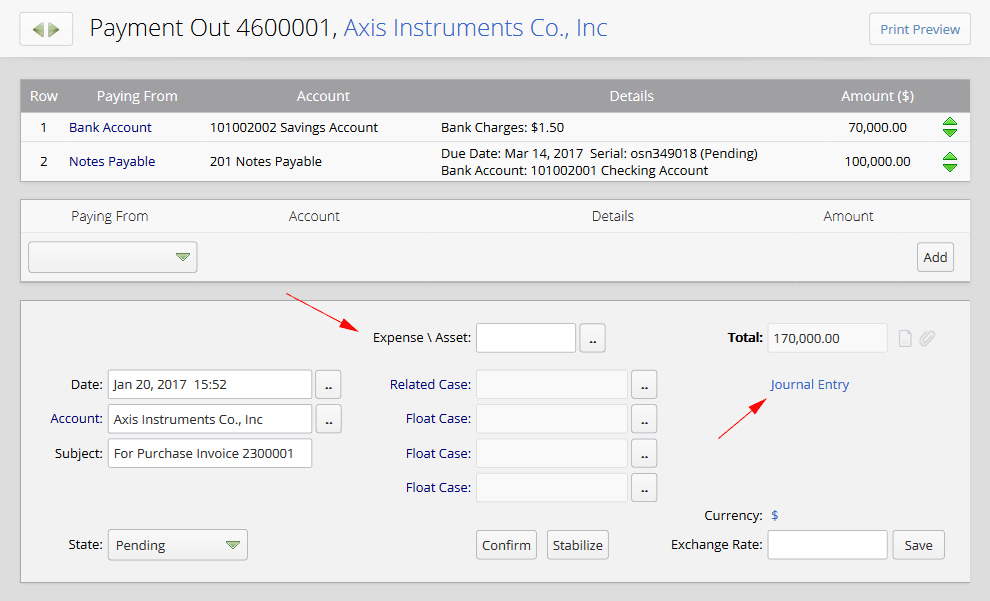
While setting all the actions about reception or payment operation, journal entry for that operation would be automatically issued and it would be reachable by clicking on the "Journal Entry" link.
Three cases in floating form can be defined in Payment In/Out activities like Invoices, Contracts and Returns of Sales and Purchase. Such cases that have the ability to introduce a project or cost center could be stored in the related journal entry as floating objects, within the name of crm account.
In the case that the Expense account is specified in Payment Out activities, the related journal entry will be set with that expense and activity crm account will be debited and credited in such situations. If crm account of activity not become specified, journal entry will be issued easier in which expense account will become debited and the source of payment will become credited.
In order to transferring fund between petty cash, bank accounts and revolving funds, the account of asset should be specified in “Expense \ Asset” section which is related to the payment out form. In this case, the desired amount will be transferred to the specified account. Also in this section we can specify prepaid expenses account or attempt to purchase wealth and asset.
In Payment In activities there is a Revenue account which can be specified. In this case, the related journal entry will be set with that revenue and the crm account of the activity will be debited and credited in such situations. If crm account of the activity is not specified, the target of payment will become debited and the revenue account will become credited.
Notes Receivable / Payable
If the access permission to notes receivable and notes payable have been granted to the user, access possibility would be provided to those sections. These sections could be accessible through the Units page.
Generally receivable or payable checks that are registered through payment in/out activities are visible and followable on this section. The link "Record as beginning" will be displayed, if the "All Items" tab becomes chosen. This link is useable for registering notes receivable and notes payable documents which are exist in the beginning of the first fiscal year. It is necessary to use payment in/out activities for registering receivable or payable checks during a fiscal year.
For changing the Status, it is required to use Info button and confirming the form after specifying the new status:
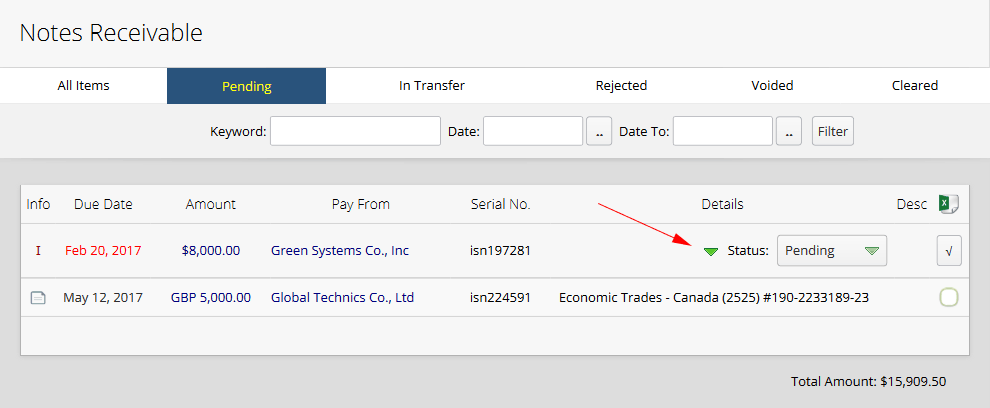
Status of notes receivable: pending / in transfer/ rejected / voided / cleared
Status of notes payable: pending / returned / rejected/ voided / cleared
All of the checks are in "pending" status during the primary registration. While a check status changes, system would issue the relevant journal entry automatically. Issued journal entries which are related to the checks status are able to be edited or omitted by users. In the case that a check changes to pending state again, system will automatically omit all the previous journal entries which are related to the status change of that check. Here we will review some practical notes:
- When a receivable check is paid by payment out operation to another person, it would be placed in “cleared” status containing a note for this situation.
- A receivable check rejection is not the reason for making the person debtor and exclusively if we refund the rejected receivables check to the person, hi/she will become debited.
- At the time that a payable note rejects, a journal entry would not be issued and exclusively the check status would be on “rejected” status in order to be specified on reports. Notice that the payable check is still on the control of person and can be cleared at any time.
- When a payable check returns to us by the person, the check would be on "returned" status. In this case it is possible to receive returned check amount by ourselves and it is provided with changing the state into "cleared".
Notes: The pages of receivable and payable notes are set in the way that if the user desired to print the information, it would act for printing in suitable status automatically. In this case it is just enough that user perform the print preview order or use directly the print command in the browser.
Extra Functions
There are set of embedded functions defined for user convenience. Extra Functions could be accessible through the system submenu, If the access permission to "Journal Entries" and/or "Extra Functions " have been granted to the user:
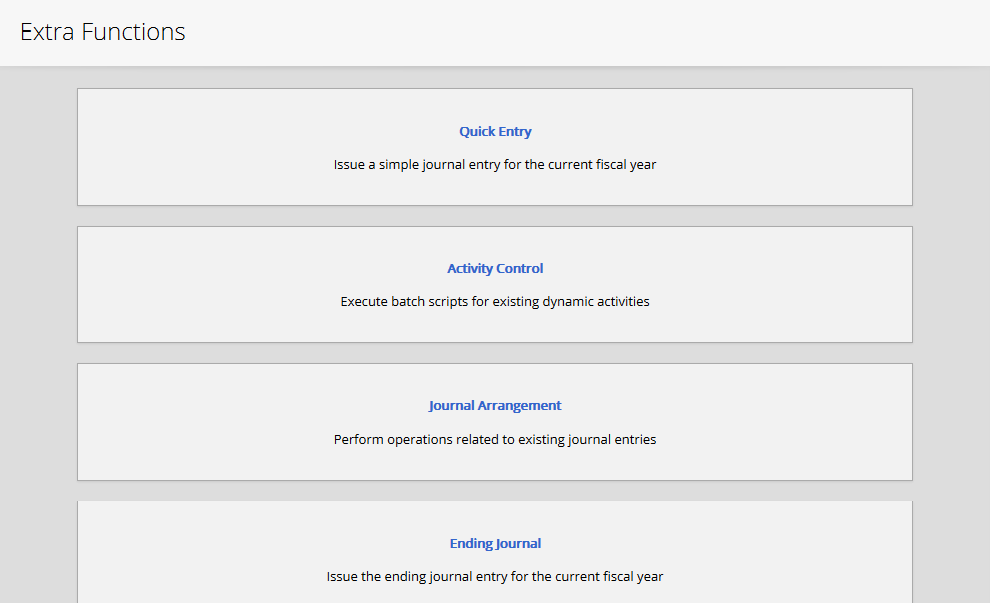
If users just need to have access to the "Quick Entry" section, access privilege for Journal Entries could be enough.
Data Analysis and Reports
In the "Analyze" menu, there are extensible facilities for analyzing the data which are registered through the Dynamic Finance and it is provided to produce practical reports:
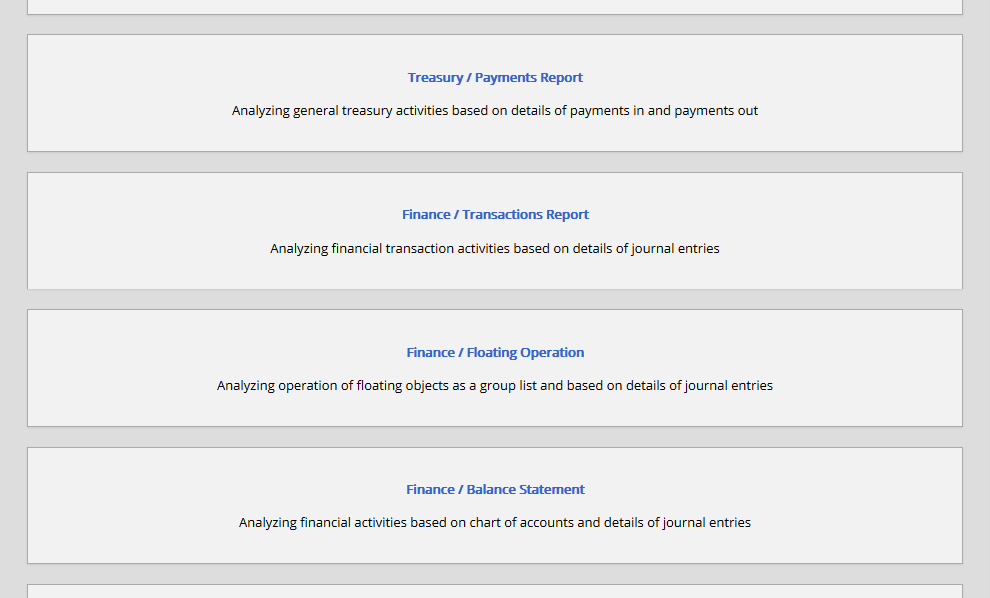
The method of how to use the most reports is simple and obvious; therefore we will exclusively explain some practical notes. One of the most practical facilities which is provided in the analyze page is "Transactions Report". In this section the recorded information in all journal entries will be analyzed to present the reports that are shown in the below image:
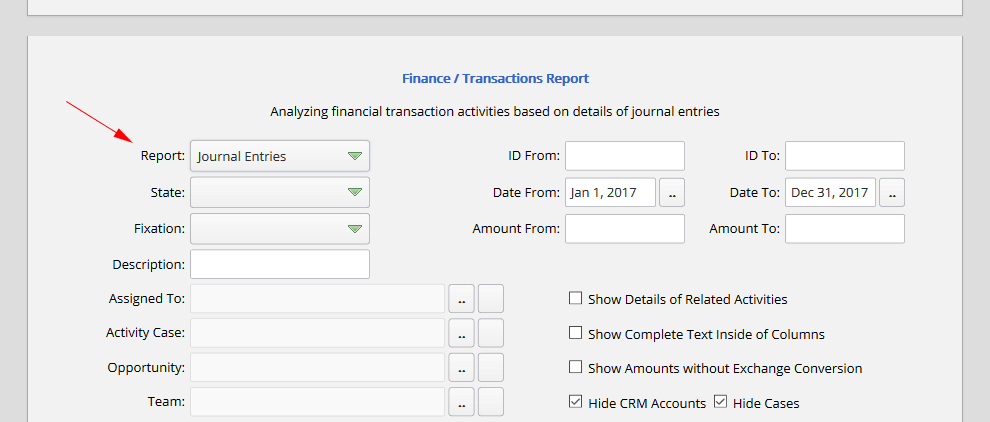
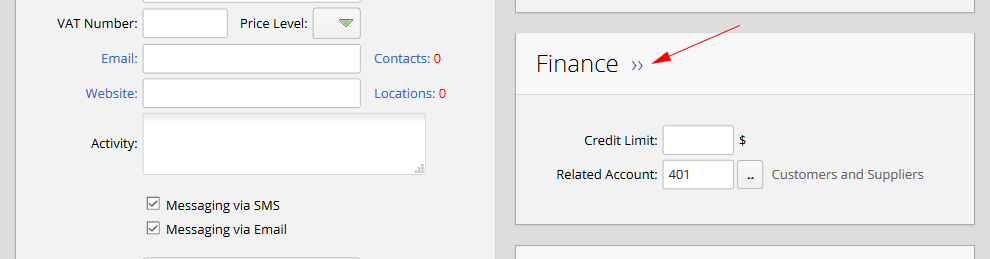
Also, one of the most common items is journal entries report. In the accounts profiles, there is a section which name is "Finance". By clicking on the finance link, the system will forward the user to journal entries report and will automatically initialize related values to financial "Account" and "CRM Account" fields in order to simplify the process of consideration of crm account's financial operation:
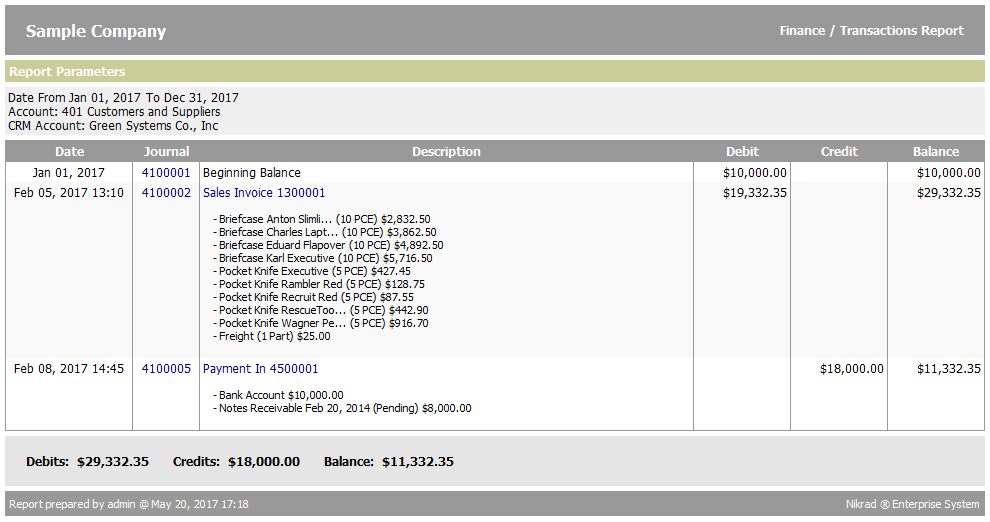
In the below image a sample of journal entries report that is called from a crm account profile and in the "Show Details of Related Activities" state is illustrated:
One of the most practical reports which exists in analyze section is "Floating Operation" report. It works based on a special financial account and has the property of checking operation of floating objects such as crm accounts and cases (cost centers, projects and so on). For example as it is shown in the below image, list of crm accounts and their operation rates which are interacted with the “401 Customers and Suppliers” financial account is desired:
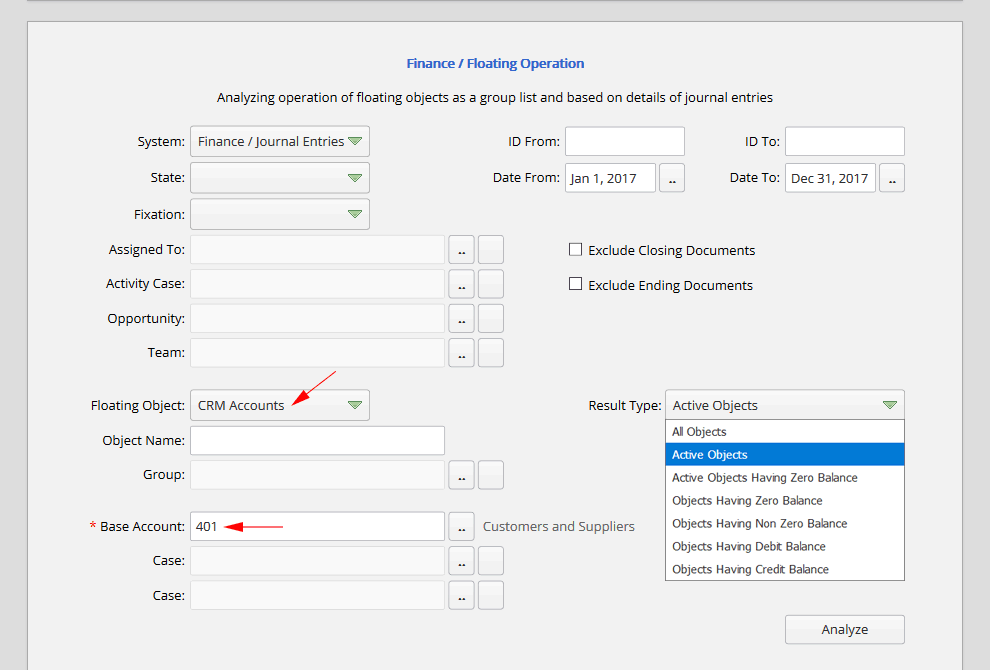
We have the ability to specify how to make a report in the "Result Type" part. With using existing modes in the list, the possibility of making optimized and summarized reports would become provided.
It is possible to specify desired group of crm accounts, if like the past example the type of floating object became “CRM Accounts”. In this case exclusively list of people who are categorized in desired group will be displayed.
The below image shows the result of report confirmation:
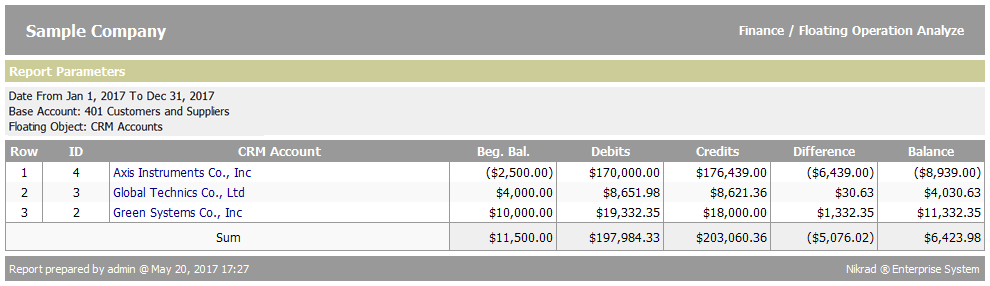
Making reports of floating objects from cases as cost centers, projects and so on is an appropriate method for checking the performance of different sections of an organization and projects and also their flow rate comparison is based on the main accounts.
The report "Balance Statement" is another common report that exists in Analyze section. The balance report can be used for checking journal entries and also for becoming aware of their balance in special period of a fiscal year. Balance statement report for "Heading / Breakdown" and also "Heading / Breakdown / Subaccount" levels have the same structure to balance report for the "Heading" level.
The possibility of producing performance summary of CRM Accounts and also Cases (projects, cost centers, etc.) in specified range of fiscal period is also provided in the balance statement report.